Works for any accompaniment track!
Import any accompaniment MP3 track you have already purchased. Works for any song, by any composer, from any publisher.
Import any accompaniment MP3 track, create precise rehearsal cues for immediate timeline playback, share and download cue sets with the community, plus Pinkzebra song special features — on iPhone and iPad.
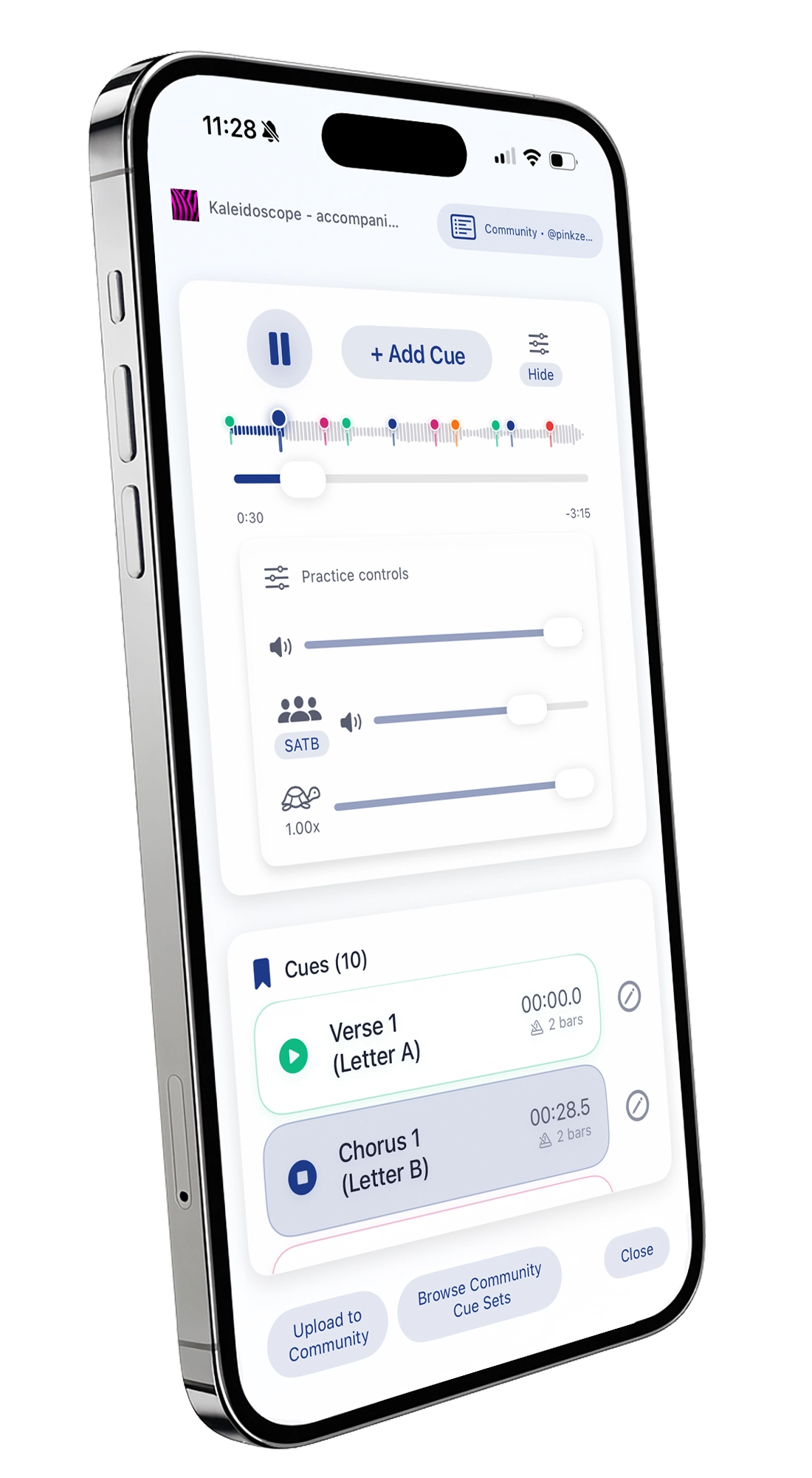

Import any accompaniment MP3 track you have already purchased. Works for any song, by any composer, from any publisher.
Tap to add labeled timeline cues with customizable pre-roll for perfect rehearsal lead-in timing and immediate playback timeline recall.

Pinkzebra songs autoload an additional choir-only audio track with volume control slider. Easily switch to any available voicing (SATB, SAB, etc.).
Share your cue sets with others. Search and import community cue sets. Rate and flag to keep quality high.
Import a track and, if a community match exists, ChoirCue suggests the cue set instantly—no searching required.
Thoughtful layouts for small and large screens with consistent controls.


Import your tracks, create your cues, and explore community cue sets.
Tap a question to expand. Your audio stays on device; cue sets are shareable.
No. ChoirCue works for any MP3 accompaniment track for any song, by any composer, from any publisher.
No. ChoirCue does not share any MP3 files. ChoirCue shares cue sets (timestamped bookmarks) associated with a particular MP3 file. The user imports their own MP3 files that they have purchased and can then import a community cue set associated with that MP3 file.
No. Your audio files always stay on your device. Only cue sets you choose to share are uploaded.
Save the MP3 file to your device’s Files app or your cloud storage. In ChoirCue, tap “Import MP3 File” and select it from your Files app or storage provider.
All imported tracks appear on the Files page. To review or delete them, tap “Manage Storage.”
Open a track, tap “+ Add” to create a cue, give it a name, and adjust the timing. Tap any cue to instantly jump to that spot during rehearsal.
Yes. From the Player page, use the share options to upload your cue set to the community.
Currently MP3 is supported. More formats may be added in future updates.
Yes. Once an MP3 is imported, you can rehearse offline. An internet connection is only required for browsing/downloading community cue sets and for downloading Pinkzebra special features.
Go to “Manage Storage” on the Files page to review and delete files. You can also open a file’s info screen and choose “Delete.”
From the Files page, go to Help → View Tutorial.
Visit www.pinkzsoftware.com for support.